How to Convert PNG to JPG When You Do Not Need Transparency
PNG is useful, but it is often heavier than necessary for ordinary photos, screenshots without transparency, and simple content images.
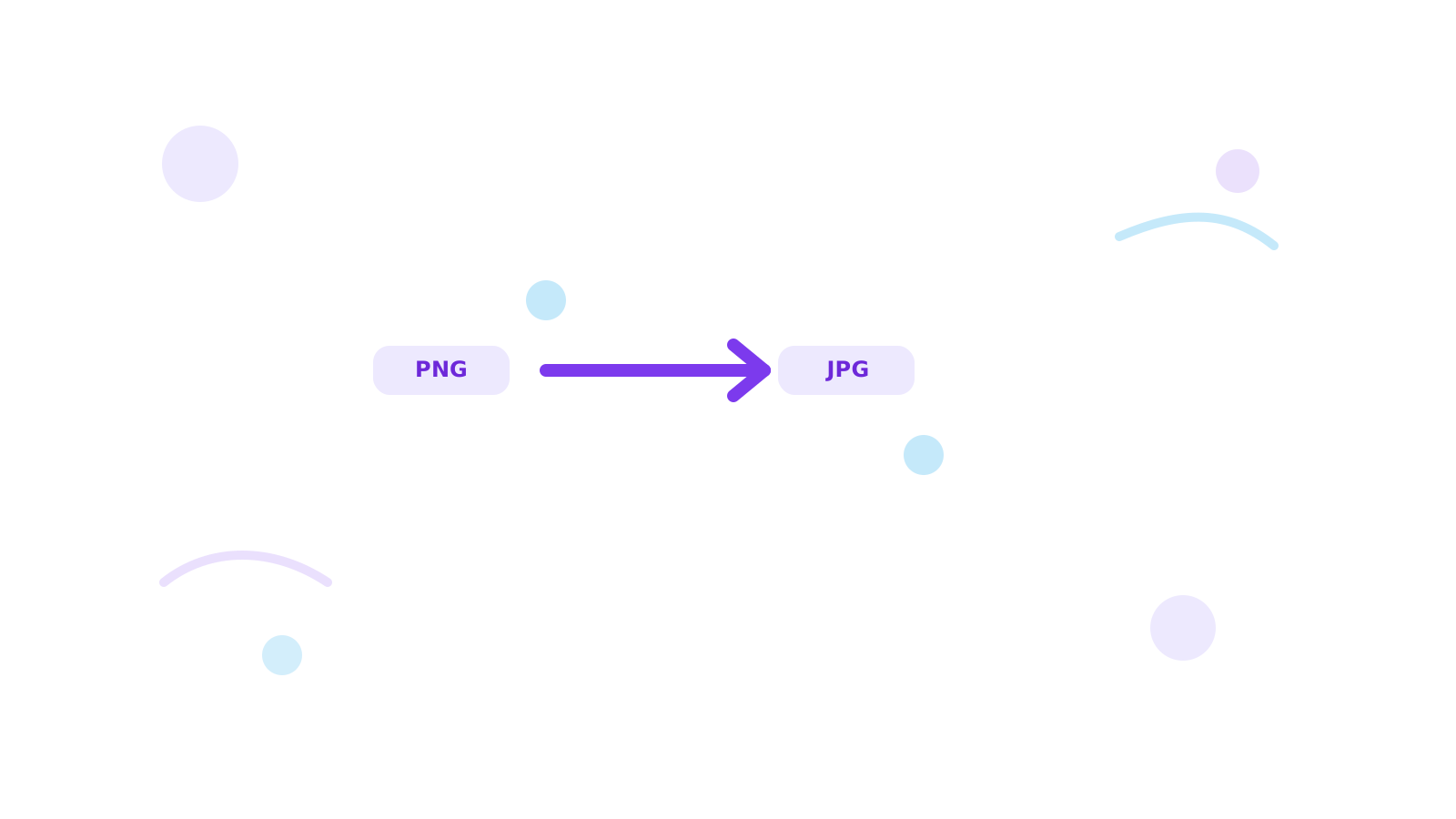
If transparency does not matter, PNG to JPG is often a more practical output.
Short Answer
Convert PNG to JPG when the file does not need a transparent background and you want a simpler or lighter image for sharing, upload, or publishing.
If the resulting JPG still feels too heavy, continue with Compress Image.
Signs You Should Switch
- the PNG is being used like a normal photo
- the file is heavier than expected
- the next workflow does not need transparency
Recommended Flow
- Convert the image with PNG to JPG.
- Review the result against the original need.
- Compress or resize only if the JPG still needs another pass.
FAQ
Should I always convert PNG to JPG?
No. Keep PNG when transparency or very crisp flat graphics are still important.
What if I am not sure which format fits?
Use Convert Image for quick comparison and read JPG vs PNG vs WebP for Web Use.
Can I shrink the JPG more after conversion?
Yes. Follow with Compress Image if the file still feels large.
Next Step
Use PNG to JPG when transparency is no longer part of the job, then compress the JPG only if the workflow still needs a smaller file.