How to Add a Confidential Watermark to a PDF Without Rebuilding the File
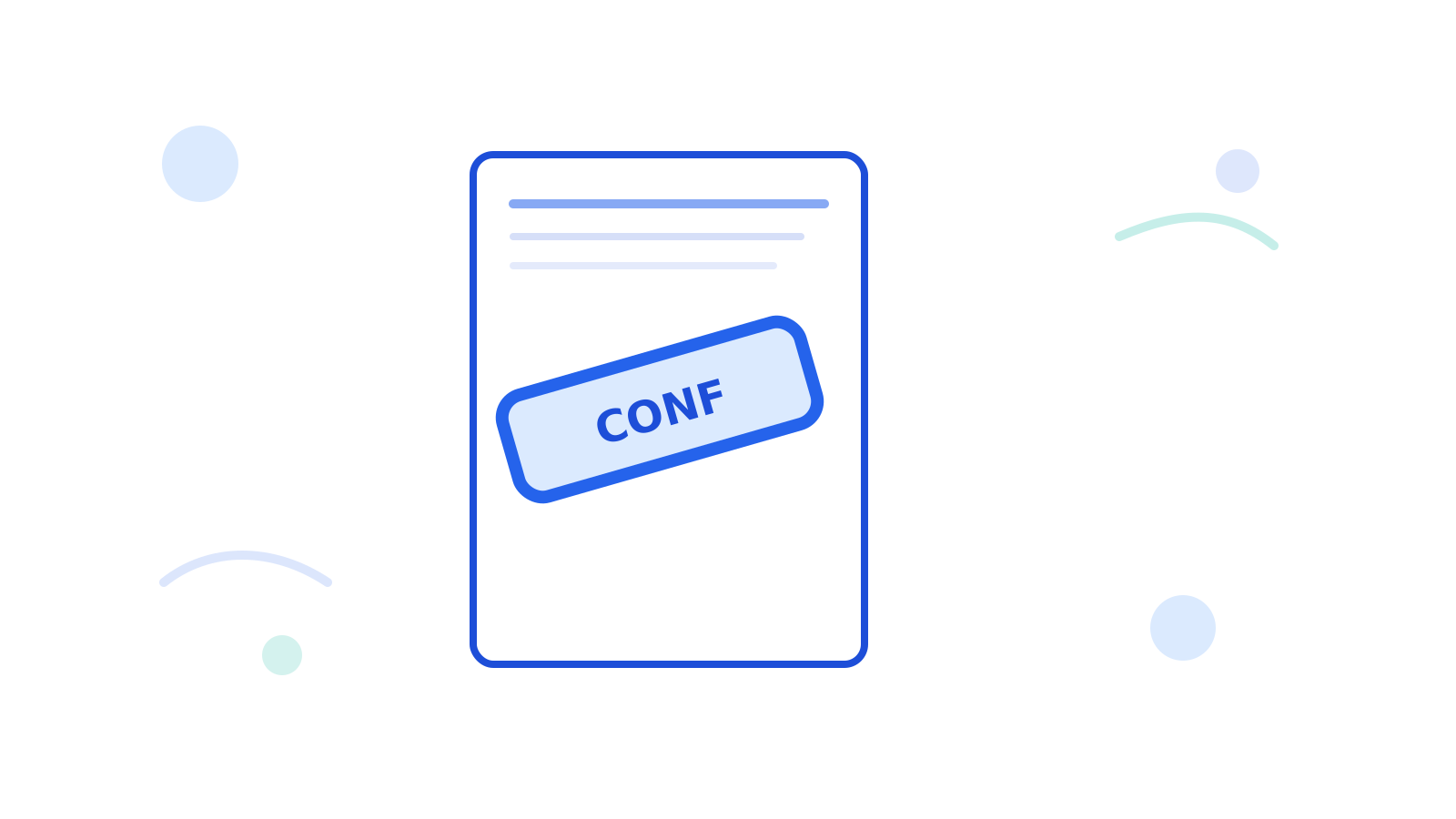
If a PDF is only for internal review, draft approval, or limited sharing, the document should say that clearly. A watermark is usually the fastest way to do it without rebuilding the whole file.
Use Watermark PDF when the document structure is already correct and you only need clear status text on top.
Short Answer
Add a watermark after the PDF is already in the right order and orientation. That way the final status-marked file is the one you actually intend to share.
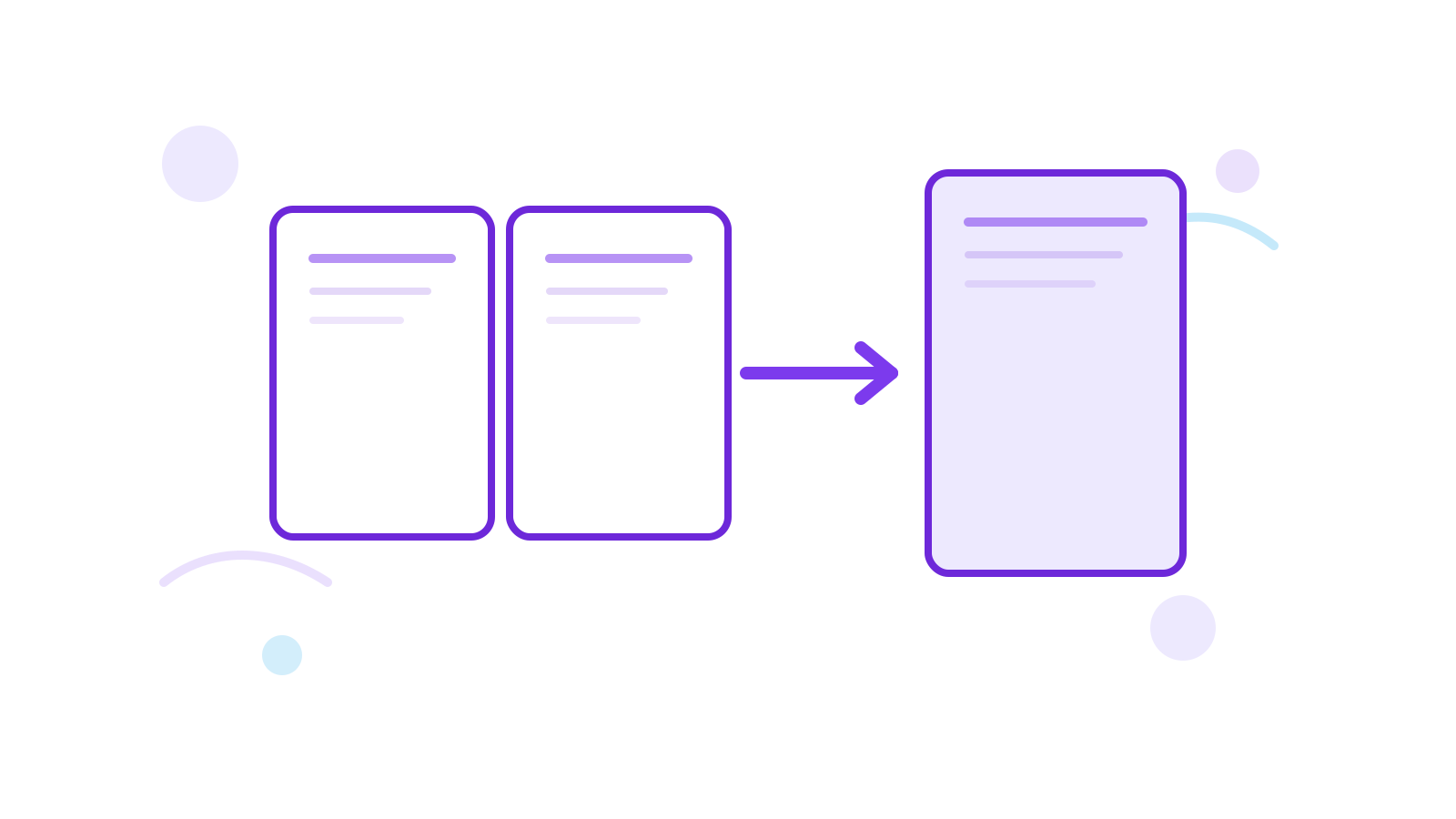
If the pages are still sideways or misordered, fix those issues first with Rotate PDF or Merge PDF.
Good Use Cases
- draft proposals
- confidential internal documents
- review copies
- files that should not be mistaken for the final version
Better Workflow
- Finalize the file structure first.
- Rotate or merge if needed.
- Add the watermark text with Watermark PDF.
- Add page numbers only if the review flow also needs referencing.
FAQ
Should I watermark before merging?
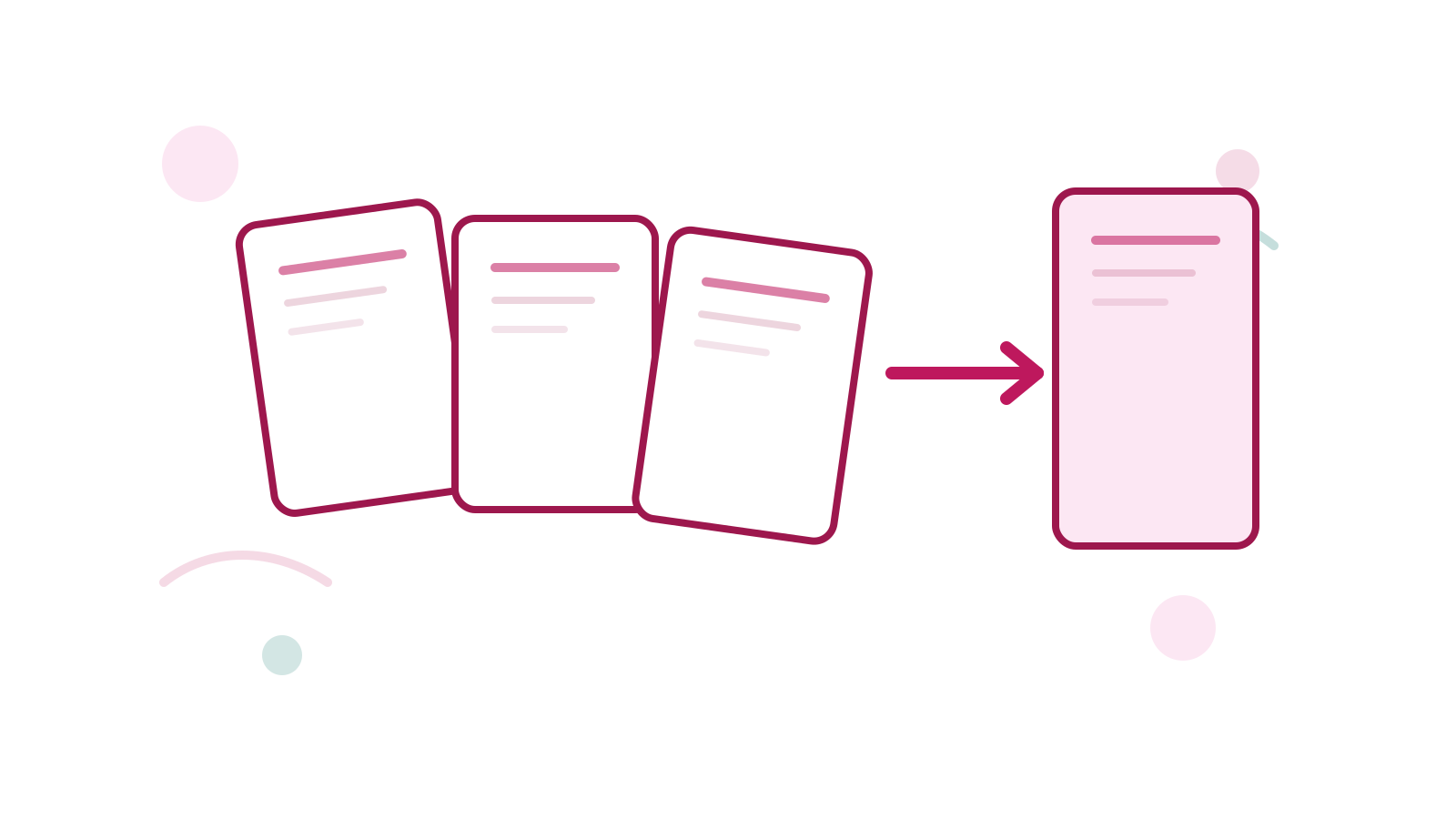
Usually no. Merge first, then watermark the final file you actually plan to send.
Can I number the pages too?
Yes. If the file needs both clear status text and page references, follow up with Add Page Numbers.
What text should I use?
Keep it obvious and short, such as Draft or Confidential.
Next Step
Open Watermark PDF once the PDF layout is already final, then export one clearly marked version for sharing.