How to Create a Single-Page PDF from an Image
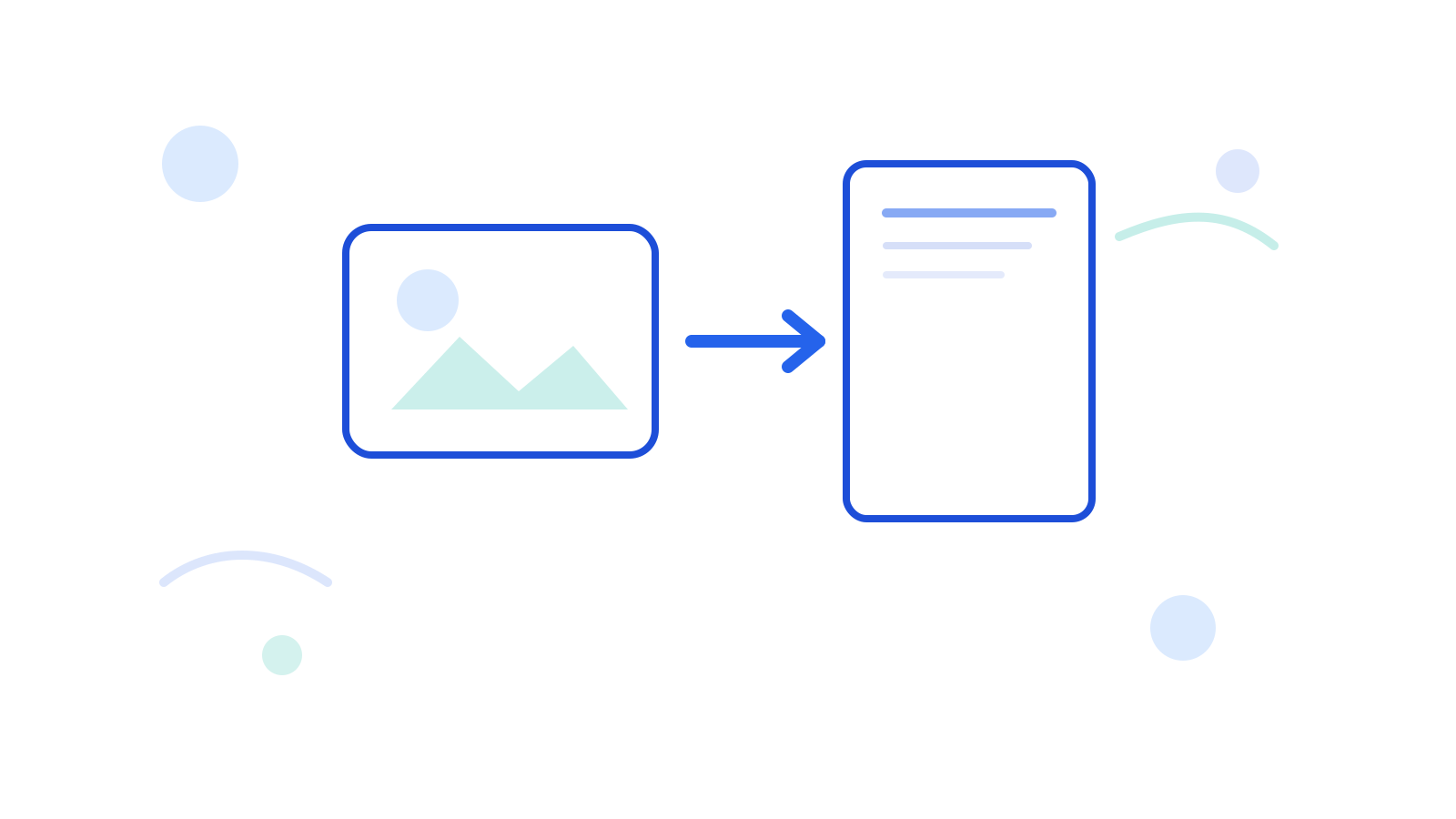
Sometimes an image is technically enough, but the workflow expects a PDF. That often happens in handoff, upload, review, or document-sharing situations.
When you only need one clean document page, Image to PDF is the simplest route.
Short Answer
Convert the image to PDF when the receiving workflow expects a document file instead of a raw image. This is especially useful when you want one image to behave like a shareable page.
If the image still needs cleanup first, run Resize Image or Compress Image before conversion.
Common Use Cases
- sending one signed image page as a PDF
- turning a scan photo into a document file
- preparing a simple upload where PDF is expected
Better Workflow
- Make sure the image itself is ready.
- Resize or compress first if needed.
- Convert the final image with Image to PDF.
FAQ
Should I convert before resizing?
Usually no. Make the image itself correct first, then create the PDF.
Can I use JPG or PNG?
Yes. That is exactly what Image to PDF is for.
What if the image file still feels heavy?
Use Compress Image or Resize Image first.
Next Step
Open Image to PDF when the image is already ready and the only thing left is turning it into one clean PDF page.