How to Delete Blank Pages from a PDF Without Breaking the Rest of the File
Blank pages make a PDF feel unfinished. They usually come from scanner defaults, export quirks, or stitched documents that were merged before anyone cleaned them.
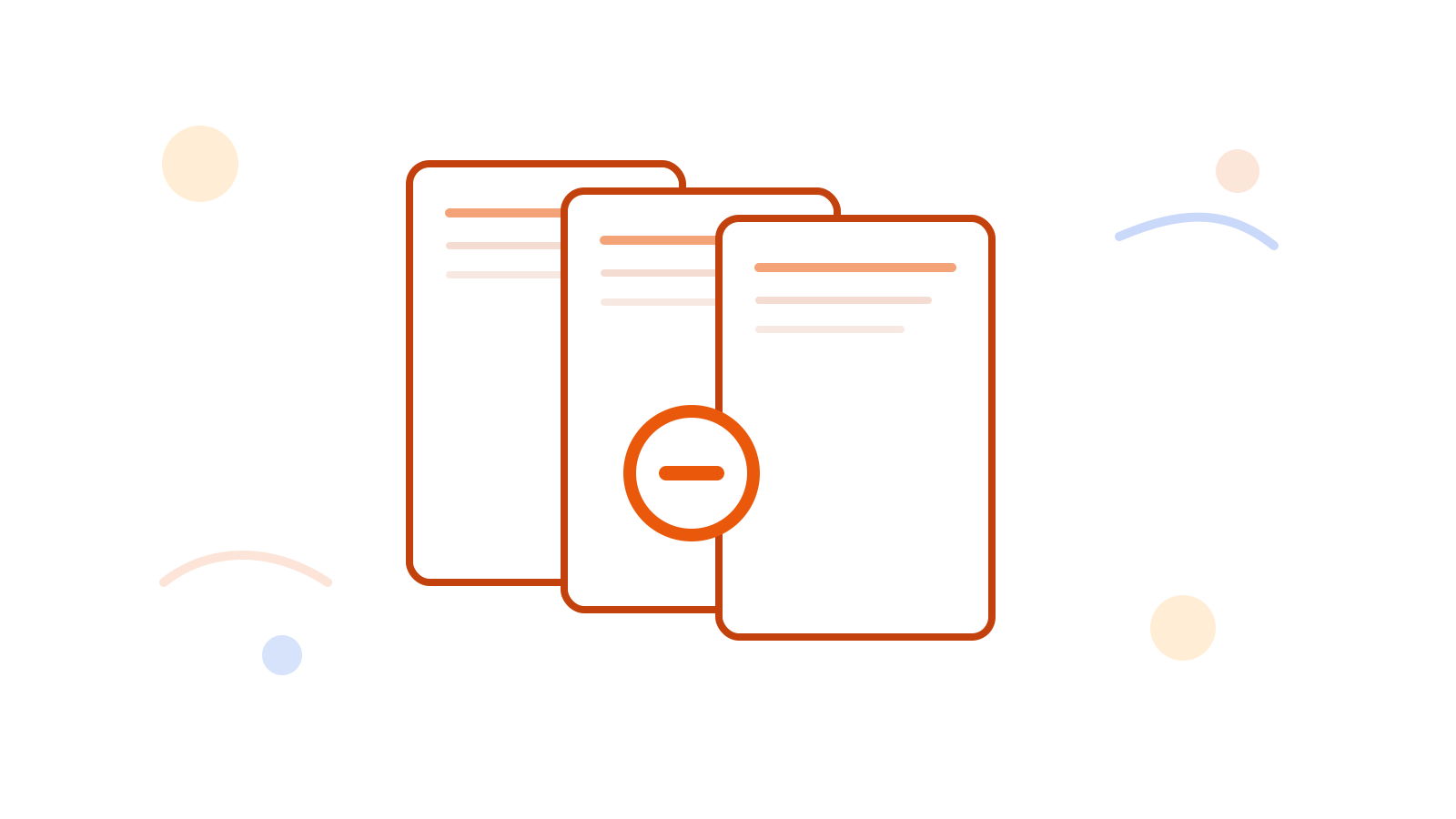
The simplest fix is to remove the unwanted pages directly with Delete PDF Pages, then review the final file once before sending it out.
Short Answer
If the PDF contains a few empty or unwanted pages, remove them directly instead of rebuilding the whole file. That is faster and keeps the rest of the document intact.
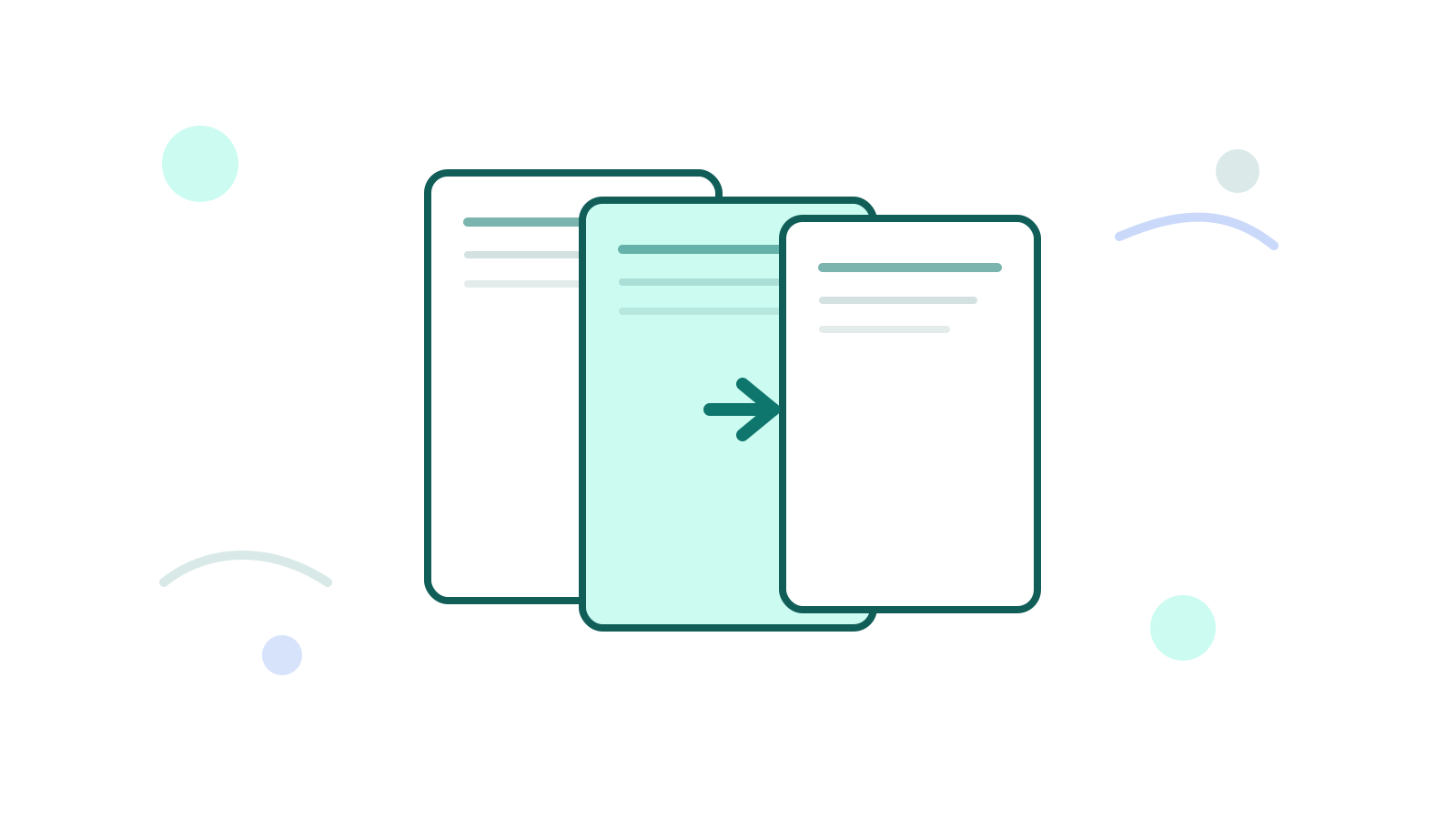
If you only want to keep a small set of pages instead, Extract PDF Pages may be the cleaner choice.
Typical Cases
- scanned PDFs with inserted blank sheets
- merged reports with extra cover pages
- exported PDFs with unused appendix pages
Clean Workflow
- Identify which pages should be removed.
- Open Delete PDF Pages.
- Remove only those ranges.
- Download the cleaned file and review the page flow once.
When Delete Is Better Than Extract
Delete is better when the PDF is mostly correct and only a few pages need to go. Extract is better when you want to keep only a small section of the file.
FAQ
Should I delete or extract?
Delete when you want to remove a few pages. Extract when most of the document should be discarded and only a few pages should remain.
What if the PDF has several separate sections?
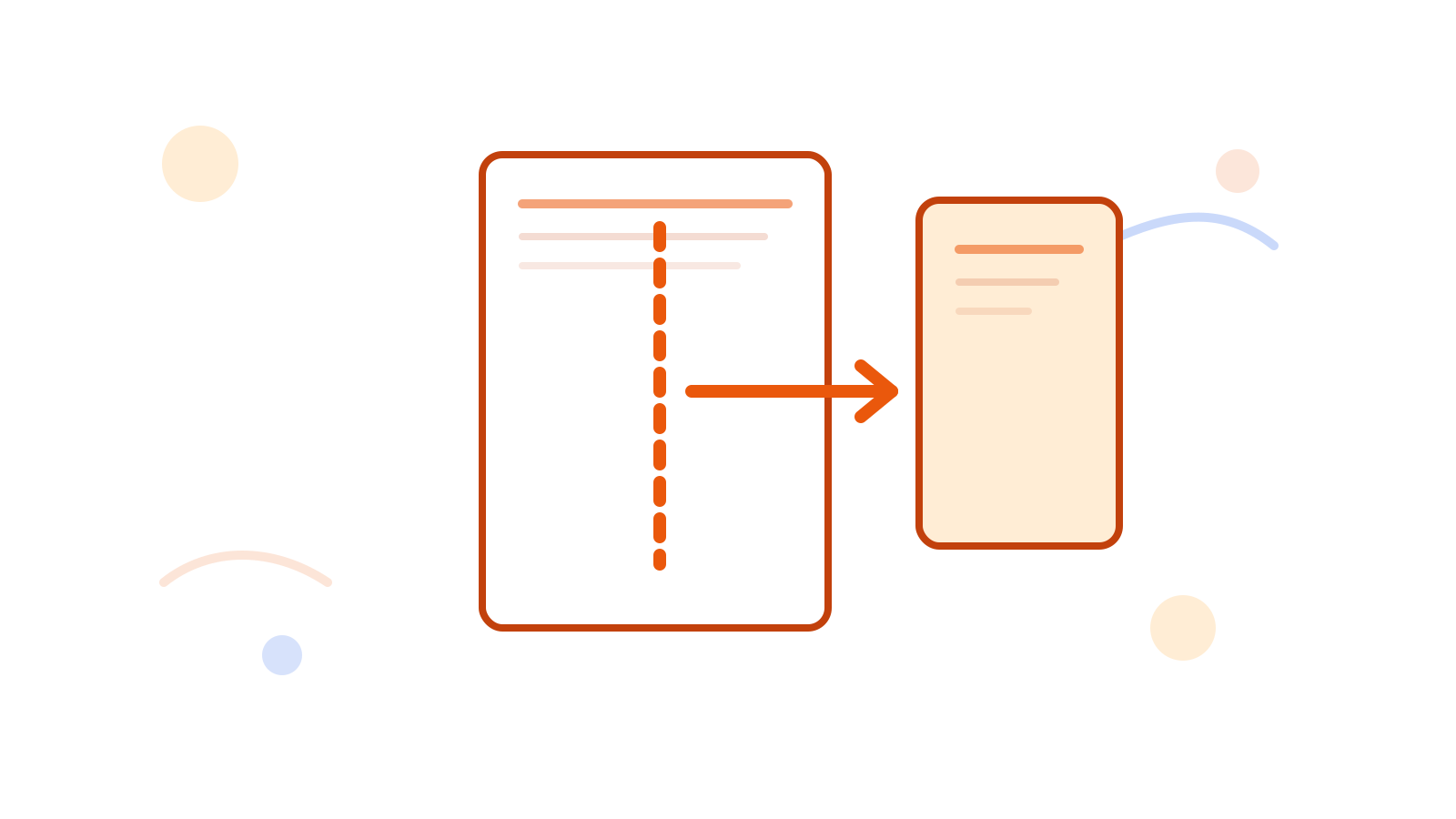
After cleanup, you can continue with Split PDF if the document should become multiple files.
Can I merge cleaned PDFs later?
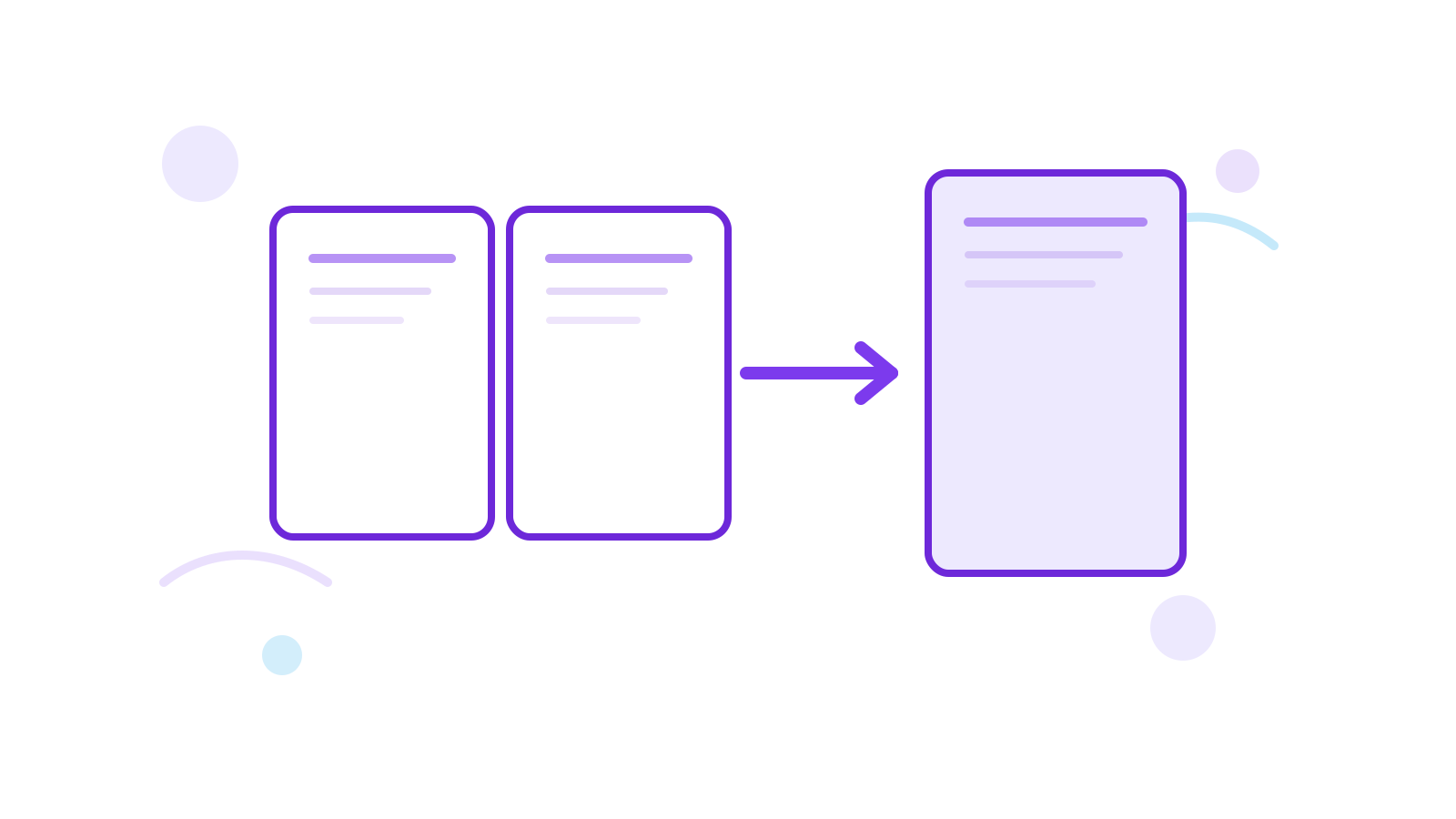
Yes. After cleanup, use Merge PDF if several cleaned documents belong together.
Next Step
Use Delete PDF Pages to remove the obvious blanks first. Then decide whether the file also needs Split PDF or Merge PDF as the next step.