How to Extract Pages from a PDF and Keep Only the Part You Need
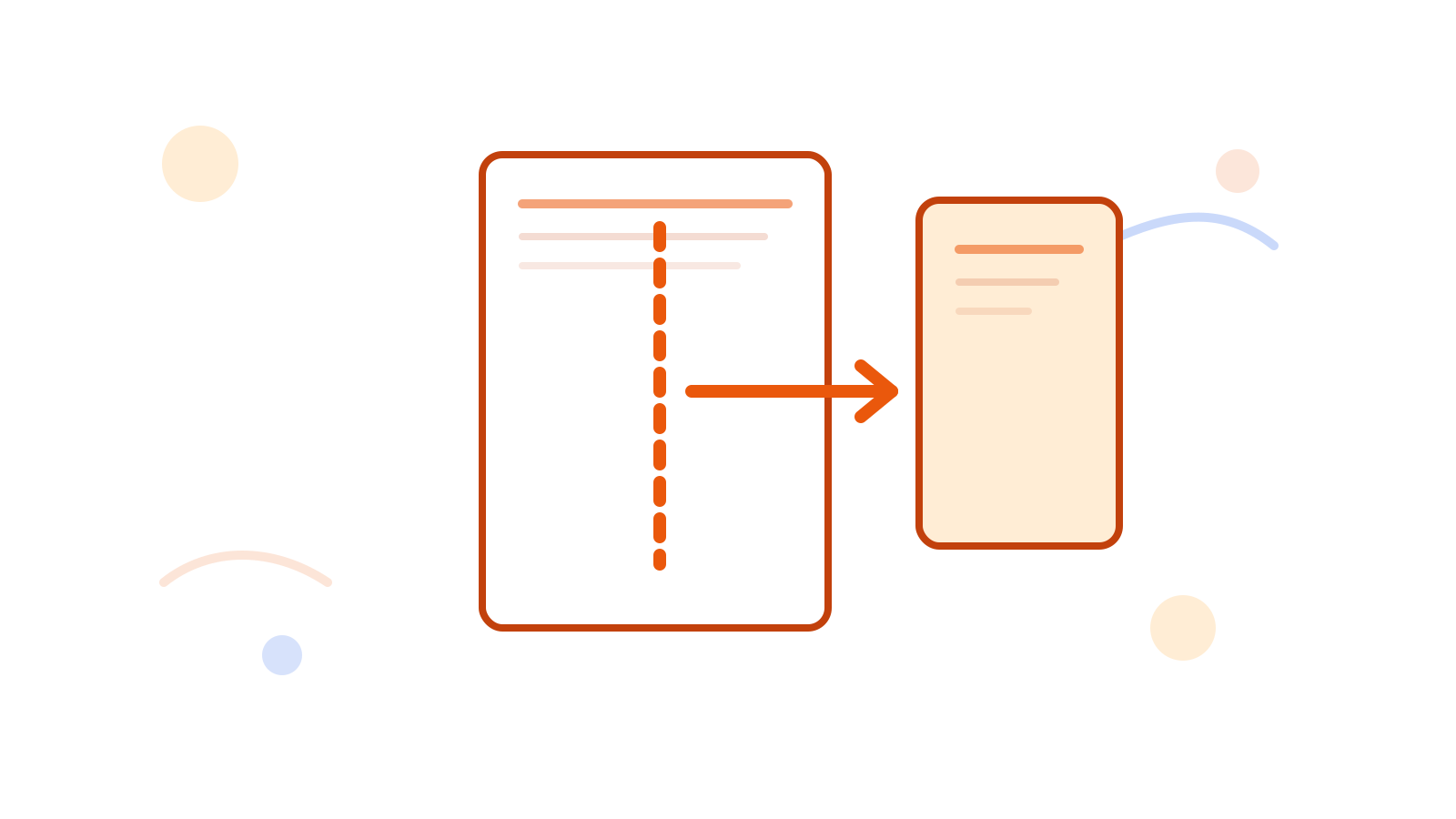
Sometimes the PDF is fine, but you do not need the whole thing. You only need one section, one chapter, or a few specific pages that should become a smaller file.
That is exactly what Extract PDF Pages is for.
Short Answer
Use extract when the goal is to keep a subset of pages in one new PDF. This is cleaner than deleting dozens of pages one by one from a large file.
If you need multiple outputs instead of one smaller PDF, use Split PDF instead.
Best Situations for Extract
- keeping only the signed pages from a contract
- sending one section of a report
- pulling appendix pages into a separate file
- saving only the pages relevant to one teammate
Practical Workflow
- Decide which pages should remain in the final file.
- Open Extract PDF Pages.
- Add the keep range or ranges.
- Download the new PDF and check that the kept pages read in the right order.
Extract vs Delete vs Split
- Use extract when one smaller PDF should remain.
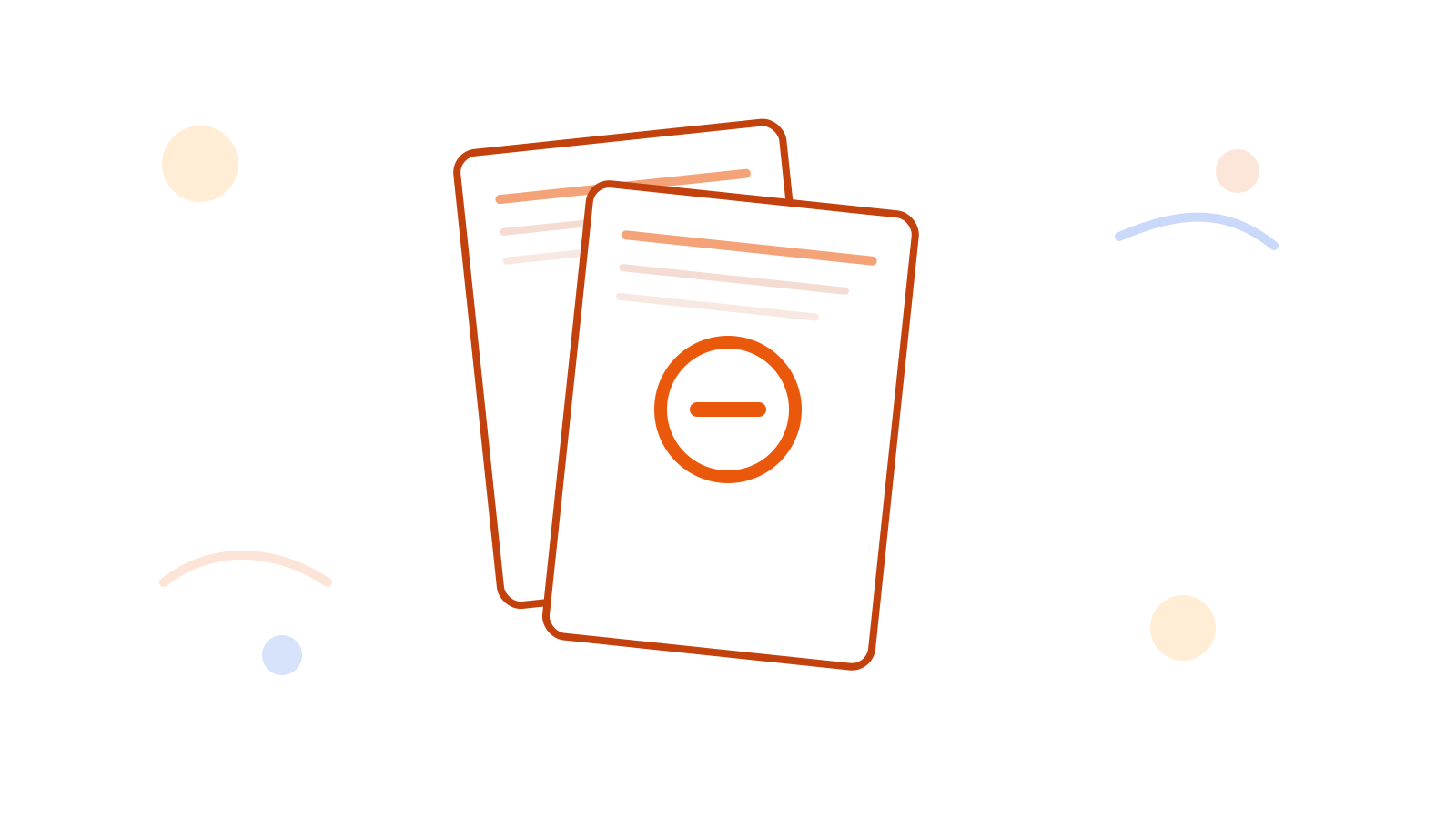
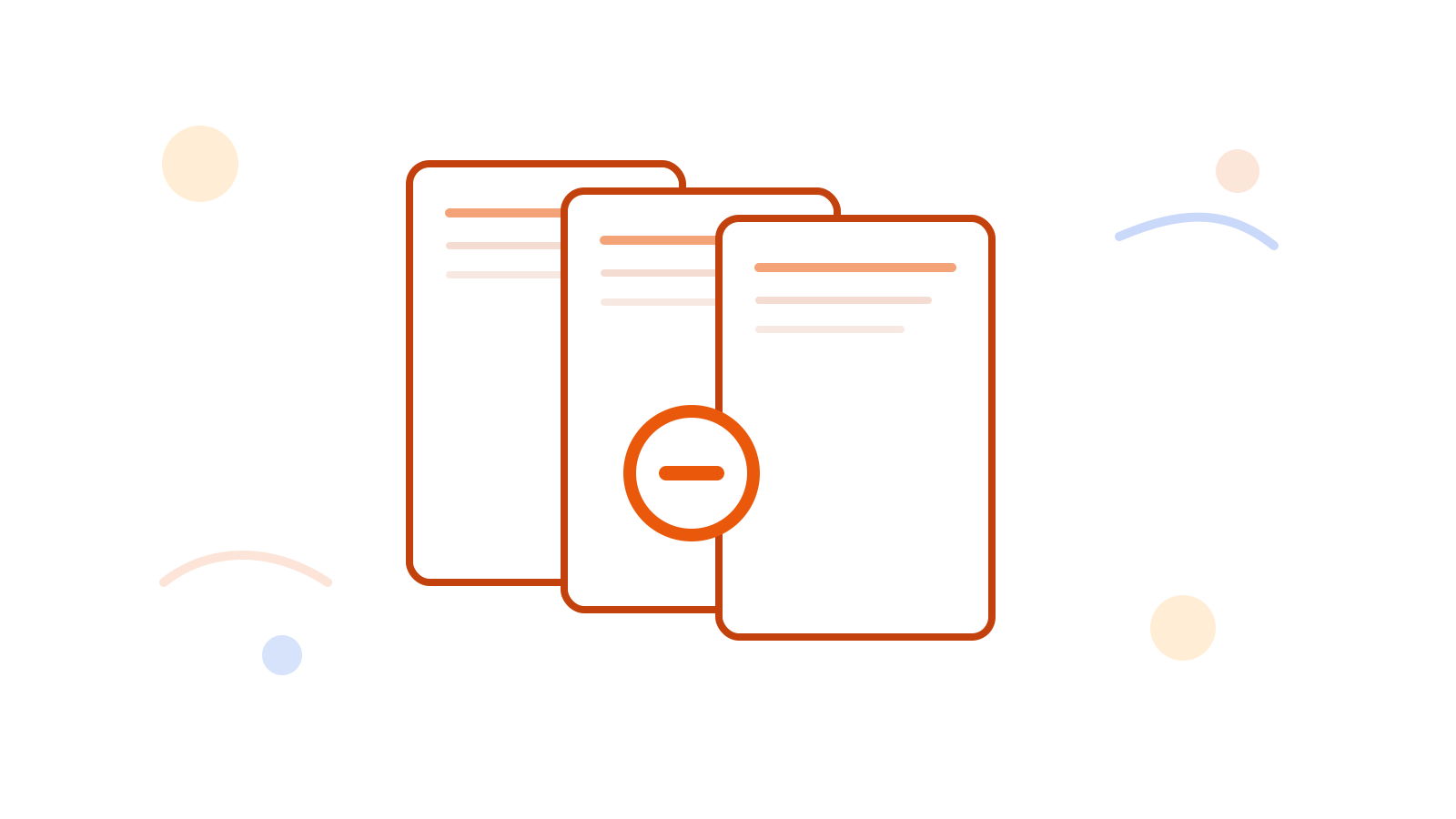
- Use Delete PDF Pages when most of the PDF should stay intact and only a few pages should be removed.
- Use Split PDF when the goal is several separate output files.
FAQ
Can I keep more than one range?
Yes. That is useful when the final PDF should include several separate sections.
What if I chose the wrong tool?
If you only want to remove a few pages, switch to Delete PDF Pages. If you want multiple files, use Split PDF.
Can I merge extracted sections later?
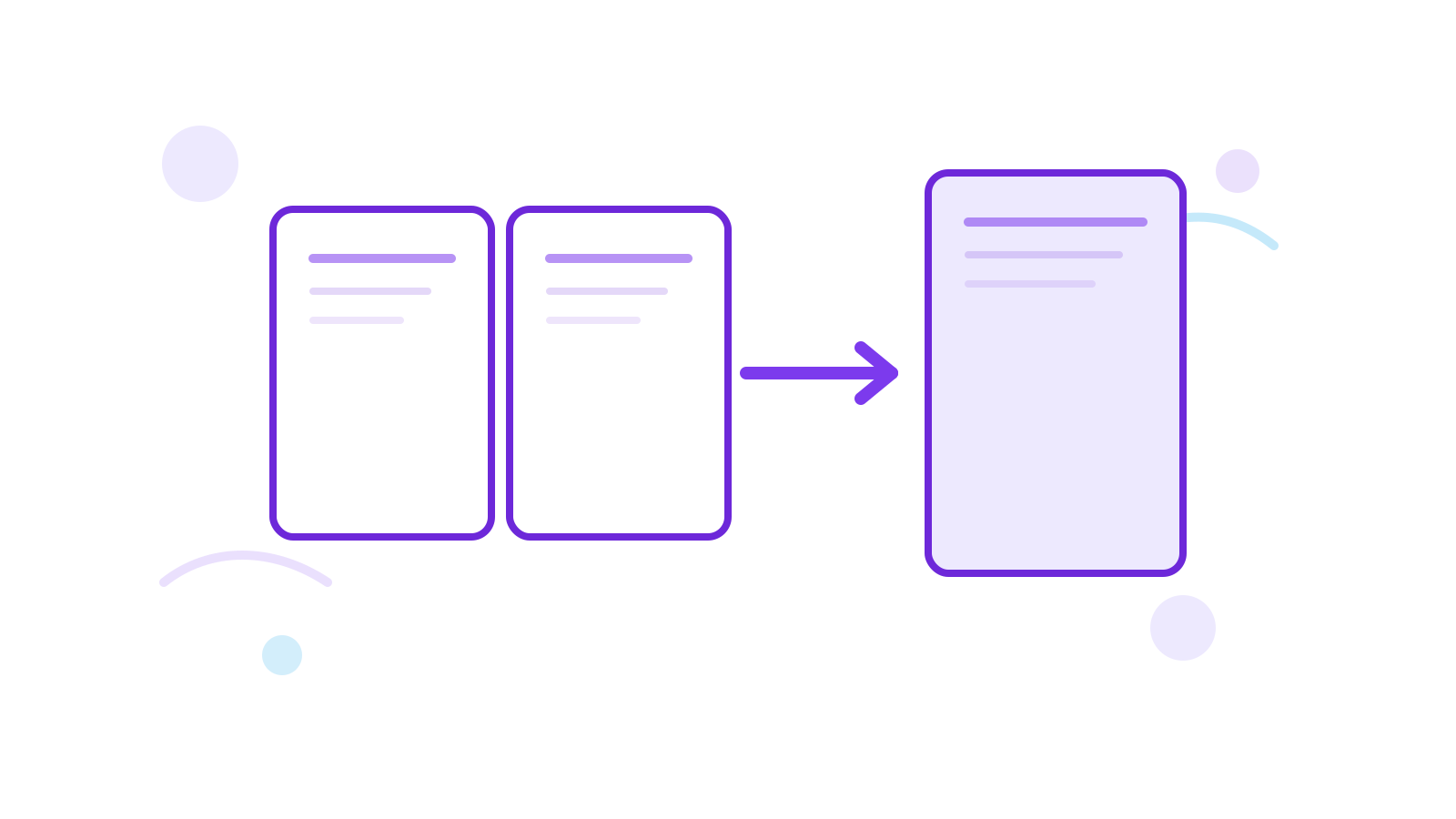
Yes. Use Merge PDF if the extracted files need to come back together later.
Next Step
Open Extract PDF Pages and keep only the pages you actually need. If the goal changes to multiple outputs, continue with Split PDF.